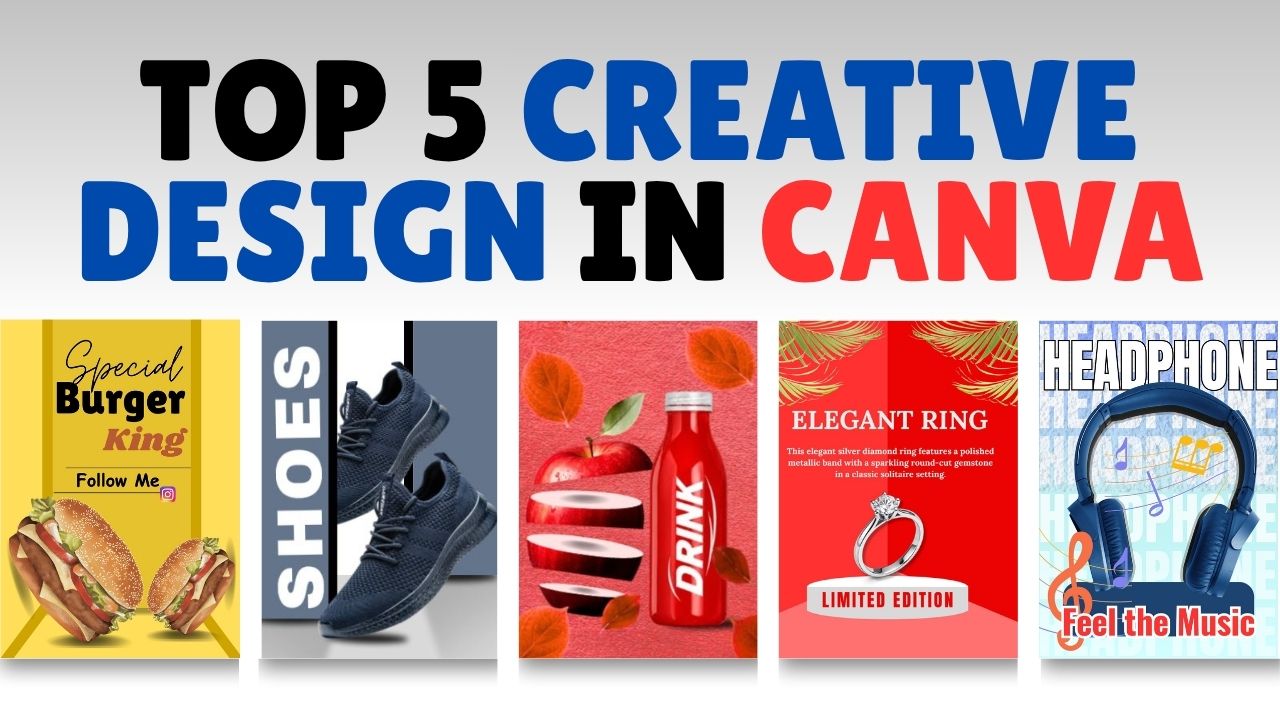
Friends, in today’s blog, we will learn how to create 5 creative designs in Canva—specifically, designs resembling posters or advertisements. Even if you have just a basic understanding of Canva, you can easily create impressive poster or advertisement designs. While you can create such designs using various applications, Canva is excellent for crafting truly creative and high-quality visuals. Although software like Photoshop or CorelDRAW can also be used for this purpose, today we will focus on creating these designs in Canva. So, let’s get started with these 5 creative designs.
We will cover 5 creative designs in this blog. After reading the post, be sure to watch the accompanying video tutorial; you can find the link to the video at the bottom of this page.
Number (1):- Shoe Poster Design
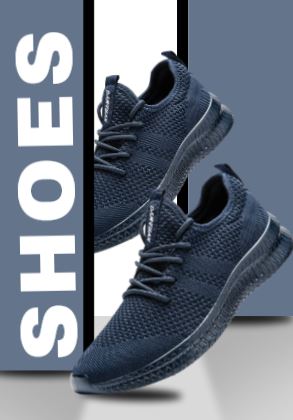
Go to Google, type “Canva,” and log in using any email ID; the Canva interface will open. Click on the “Templates” option, then select “Poster,” and finally click on “Create Blank Page.” Next, go to the “Elements” (or Tools) option on the left, select a rectangle shape, and adjust it vertically along both the left and right sides of the background—making the left shape slightly longer. Fill the shapes with a gray color. Then, add a dark black outline to both the left and right shapes.
Click on the “Elements” option on the left, type “shadow” in the search bar, select a shadow element, and position it beneath the left and right shapes. Now, click on the “Uploads” option on the left, select a PNG image of a shoe, and place it centrally between the left and right shapes. Add a shadow effect beneath the shoe. Finally, use the “Text” option on the left to add the word “Shoes” and position it in the background.
Number (2):- Headphone Poster Design

Click on the “Templates” option, then select “Poster,” and click on “Create Blank Page.” Now, set the page background color to light blue. Click on the ‘Text’ option on the left and type “Headphone”; stretch this text vertically to fill the page. Now, click on the ‘Elements’ option on the left and search for a headphone image.
Position the headphone image in the center of the background and add a shadow effect to it. Search for a music-related image using the ‘Elements’ option and place it in the background. Add a music-related slogan using the ‘Text’ option.
Number (3):- Burger Poster Design
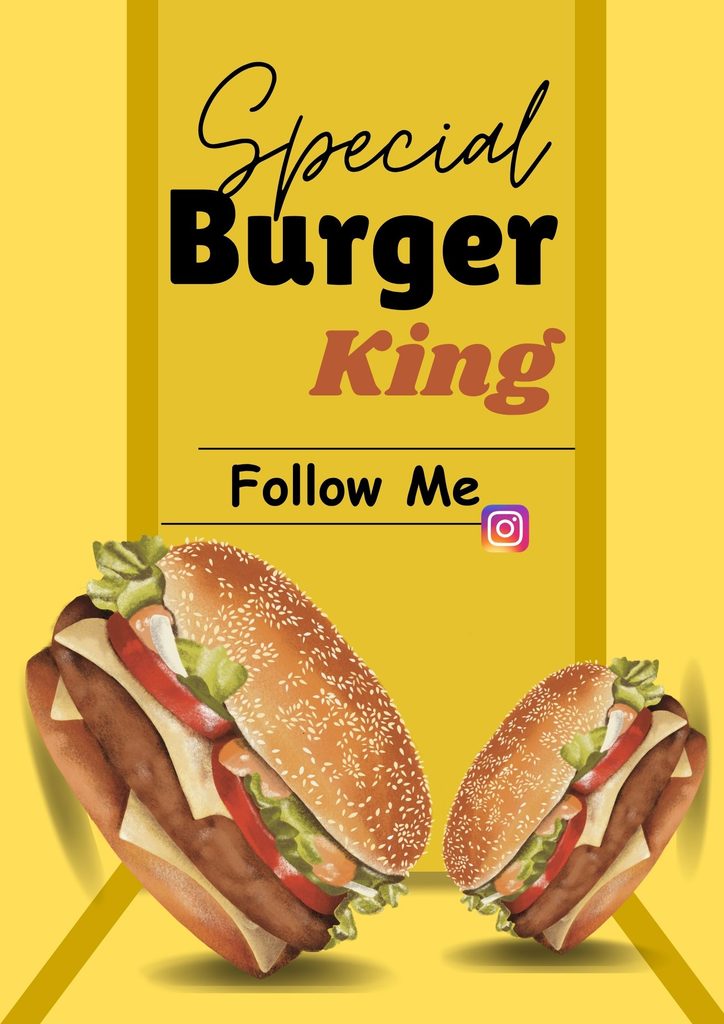
Click on the ‘Templates’ option, then select ‘Poster’, and finally click on ‘Create Blank Page’. Color the page light yellow. Click on the ‘Tools’ option on the left, select a rectangle shape, and place it in the center of the background; add a dark orange outline to the left and right sides of the rectangle.
Click on the ‘Elements’ option on the left, search for a burger PNG image, place it inside the central rectangle shape, and add a shadow effect. Use the ‘Text’ option to type “Burger” and place it on the background.
Number (4):- Drink Poster Design
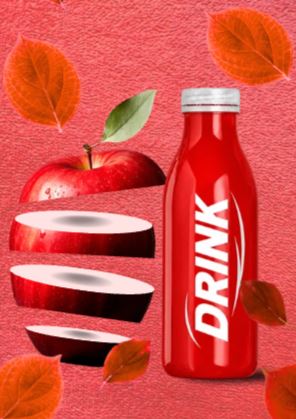
Click on the ‘Templates’ option, then select ‘Poster’, and finally click on ‘Create Blank Page’.
Click on the ‘Elements’ option on the left, search for a red texture, and set it as the background. Click on the ‘Uploads’ option to select an apple image; crop/cut the apple image in various ways to decorate it. Select a red bottle labeled “Drink” and a leaf image to decorate the red background.
Number (5):- Ring Poster Design
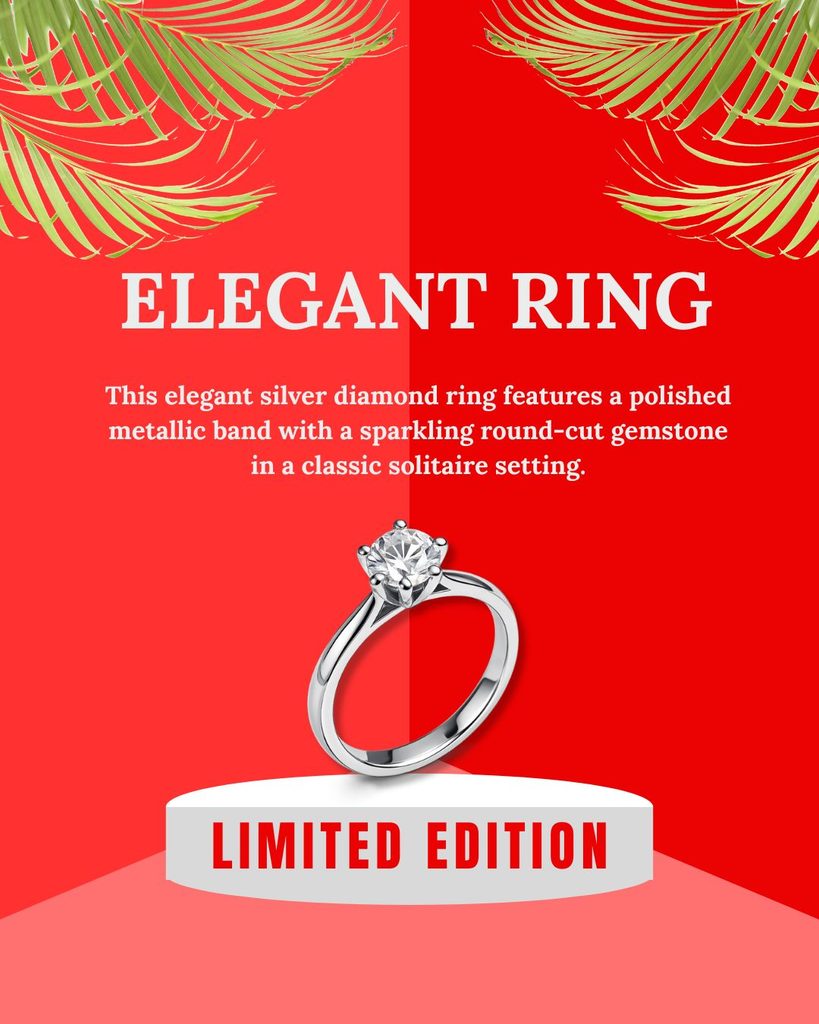
Click on the ‘Templates’ option, then select ‘Poster’, and finally click on ‘Create Blank Page’. Click on the ‘Tools’ option on the left, select a rectangle shape, and adjust it vertically on the left and right sides of the background, coloring it red. Select a circle shape, style it to look like a table, and place it in the background. Place a ring on this circular table shape. Complete the design by adding a text heading and a slogan.
In Hindi:-
दोस्तों, आज के ब्लॉग में हम सीखेंगे कि Canva में 5 क्रिएटिव डिज़ाइन कैसे बनाए जाएं—खासकर पोस्टर या विज्ञापन जैसे डिज़ाइन। अगर आपको Canva की थोड़ी-बहुत भी जानकारी है, तो आप आसानी से शानदार पोस्टर या विज्ञापन डिज़ाइन बना सकते हैं। वैसे तो ऐसे डिज़ाइन कई ऐप्स का इस्तेमाल करके बनाए जा सकते हैं, लेकिन वाकई क्रिएटिव और हाई-क्वालिटी विज़ुअल्स बनाने के लिए Canva बेहतरीन है। हालांकि Photoshop या CorelDRAW जैसे सॉफ्टवेयर का भी इस्तेमाल किया जा सकता है, लेकिन आज हम Canva में ये डिज़ाइन बनाने पर ध्यान देंगे। तो चलिए, इन 5 क्रिएटिव डिज़ाइन के साथ शुरुआत करते हैं।
हम इस ब्लॉग में 5 क्रिएटिव डिज़ाइन के बारे में जानेंगे। पोस्ट पढ़ने के बाद, साथ में दिया गया वीडियो ट्यूटोरियल ज़रूर देखें; वीडियो का लिंक आपको इस पेज के नीचे मिल जाएगा।
नंबर (1):- शू पोस्टर डिज़ाइन
Google पर जाएं, “Canva” टाइप करें और किसी भी ईमेल ID से लॉग इन करें; Canva का इंटरफ़ेस खुल जाएगा। “Templates” ऑप्शन पर क्लिक करें, फिर “Poster” चुनें और आखिर में “Create Blank Page” पर क्लिक करें। इसके बाद, बाईं ओर “Elements” (या Tools) ऑप्शन पर जाएं, एक रेक्टेंगल (आयत) शेप चुनें और इसे बैकग्राउंड के बाईं और दाईं ओर वर्टिकली एडजस्ट करें—बाईं ओर वाले शेप को थोड़ा लंबा रखें। शेप्स में ग्रे रंग भरें। फिर, बाईं और दाईं ओर वाले दोनों शेप्स में गहरी काली आउटलाइन जोड़ें।
बाईं ओर “Elements” ऑप्शन पर क्लिक करें, सर्च बार में “shadow” टाइप करें, एक शैडो एलिमेंट चुनें और उसे बाईं और दाईं ओर वाले शेप्स के नीचे रखें। अब, बाईं ओर “Uploads” ऑप्शन पर क्लिक करें, जूते की एक PNG इमेज चुनें और उसे बाईं और दाईं ओर वाले शेप्स के बीच में रखें। जूते के नीचे शैडो इफ़ेक्ट जोड़ें। आखिर में, “Shoes” शब्द जोड़ने के लिए बाईं ओर “Text” ऑप्शन का इस्तेमाल करें और उसे बैकग्राउंड में सेट करें।
नंबर (2):- हेडफ़ोन पोस्टर डिज़ाइन
“Templates” ऑप्शन पर क्लिक करें, फिर “Poster” चुनें और “Create Blank Page” पर क्लिक करें। अब, पेज का बैकग्राउंड रंग हल्का नीला (light blue) सेट करें। बाईं ओर ‘Text’ ऑप्शन पर क्लिक करें और “Headphone” टाइप करें; इस टेक्स्ट को वर्टिकली खींचकर पूरे पेज पर फैला दें। अब, बाईं ओर ‘Elements’ ऑप्शन पर क्लिक करें और हेडफ़ोन की इमेज सर्च करें। हेडफ़ोन की इमेज को बैकग्राउंड के बीच में रखें और उसमें शैडो इफ़ेक्ट जोड़ें। ‘Elements’ ऑप्शन का इस्तेमाल करके म्यूज़िक से जुड़ी इमेज खोजें और उसे बैकग्राउंड में रखें। ‘Text’ ऑप्शन का इस्तेमाल करके म्यूज़िक से जुड़ा स्लोगन जोड़ें।
नंबर (3):- बर्गर पोस्टर डिज़ाइन
‘Templates’ ऑप्शन पर क्लिक करें, फिर ‘Poster’ चुनें और आखिर में ‘Create Blank Page’ पर क्लिक करें।
पेज को हल्के पीले रंग का करें। बाईं ओर ‘Tools’ ऑप्शन पर क्लिक करें, आयत (rectangle) का आकार चुनें और उसे बैकग्राउंड के बीच में रखें; आयत के बाईं और दाईं ओर गहरे नारंगी रंग की आउटलाइन जोड़ें।
बाईं ओर ‘Elements’ ऑप्शन पर क्लिक करें, बर्गर की PNG इमेज खोजें, उसे बीच वाले आयत के आकार के अंदर रखें और शैडो इफ़ेक्ट जोड़ें। “Burger” टाइप करने के लिए ‘Text’ ऑप्शन का इस्तेमाल करें और उसे बैकग्राउंड पर रखें।
नंबर (4):- ड्रिंक पोस्टर डिज़ाइन
‘Templates’ ऑप्शन पर क्लिक करें, फिर ‘Poster’ चुनें और आखिर में ‘Create Blank Page’ पर क्लिक करें।
बाईं ओर ‘Elements’ ऑप्शन पर क्लिक करें, लाल टेक्सचर खोजें और उसे बैकग्राउंड के तौर पर सेट करें। सेब की इमेज चुनने के लिए ‘Uploads’ ऑप्शन पर क्लिक करें; सेब की इमेज को सजाने के लिए उसे अलग-अलग तरीकों से क्रॉप/कट करें। लाल बैकग्राउंड को सजाने के लिए “Drink” लेबल वाली लाल बोतल और पत्ते की इमेज चुनें।
नंबर (5):- रिंग पोस्टर डिज़ाइन
‘Templates’ ऑप्शन पर क्लिक करें, फिर ‘Poster’ चुनें और आखिर में ‘Create Blank Page’ पर क्लिक करें। बाईं ओर ‘Tools’ ऑप्शन पर क्लिक करें, आयत का आकार चुनें और उसे बैकग्राउंड के बाईं और दाईं ओर लंबवत (vertically) एडजस्ट करें, साथ ही उसे लाल रंग दें। वृत्त (circle) का आकार चुनें, उसे मेज़ जैसा दिखने के लिए स्टाइल करें और बैकग्राउंड में रखें। इस गोलाकार मेज़ के आकार पर एक अंगूठी (ring) रखें। टेक्स्ट हेडिंग और स्लोगन जोड़कर डिज़ाइन पूरा करें।