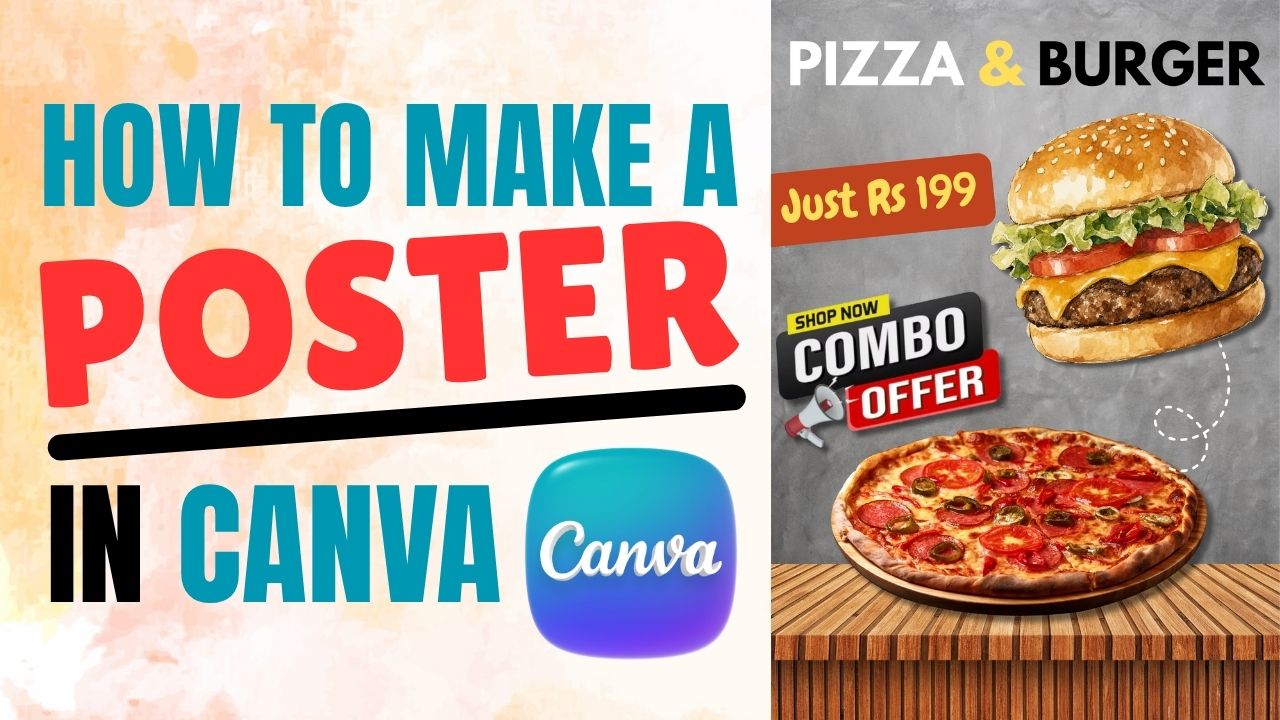
Friends, in today’s blog, we will learn how to create a poster in Canva. Even if you have just a basic understanding of Canva, you can create a great-looking poster design. While you can design posters using various applications, Canva allows you to create designs that look truly professional. Although posters are often created using software like Photoshop or CorelDRAW, today we will use Canva to design a fast-food-themed poster. Canva makes it easy to create high-quality, graphic-rich poster designs. So, let’s learn how to do this in six steps.
We will cover this process in six steps. After reading this blog, be sure to watch the video tutorial; you can find the link to the video at the bottom of the page.
Step (1):-
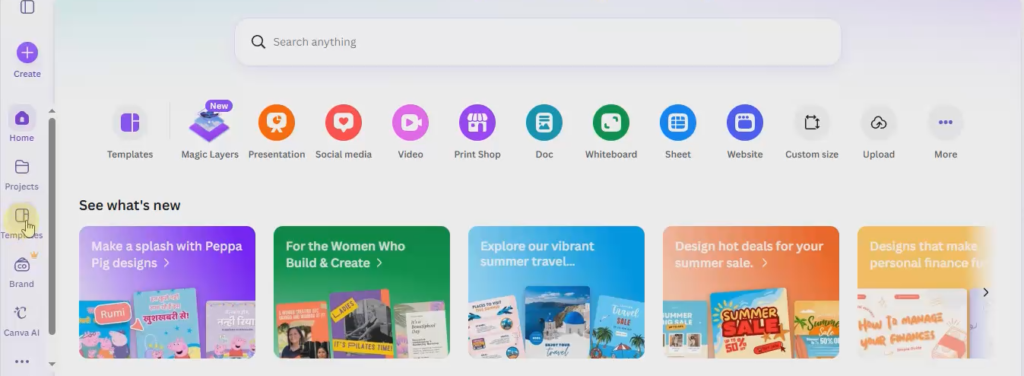
First, go to Google, search for “Canva,” and log in using an email ID to access the Canva dashboard. Click on the “Templates” option on the left side and type “Poster” in the search bar; you will see a wide range of ready-made posters. You can select any of these to create a great poster, or you can start from scratch using a blank page.
Step (2):-
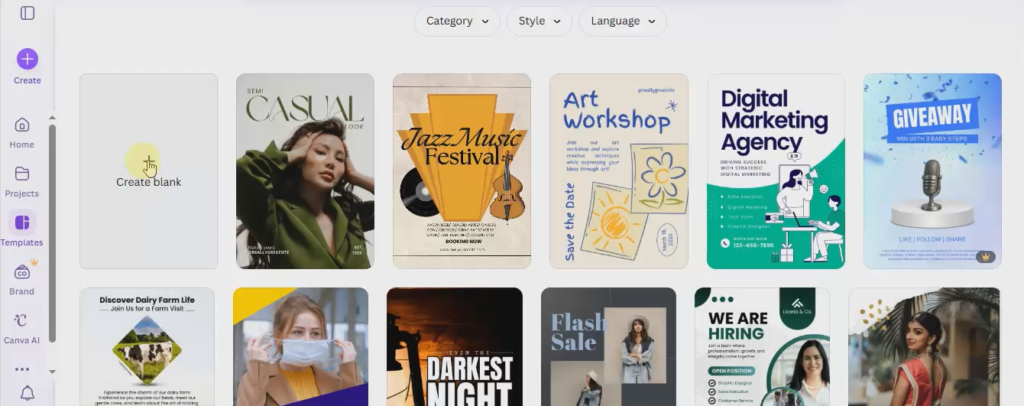
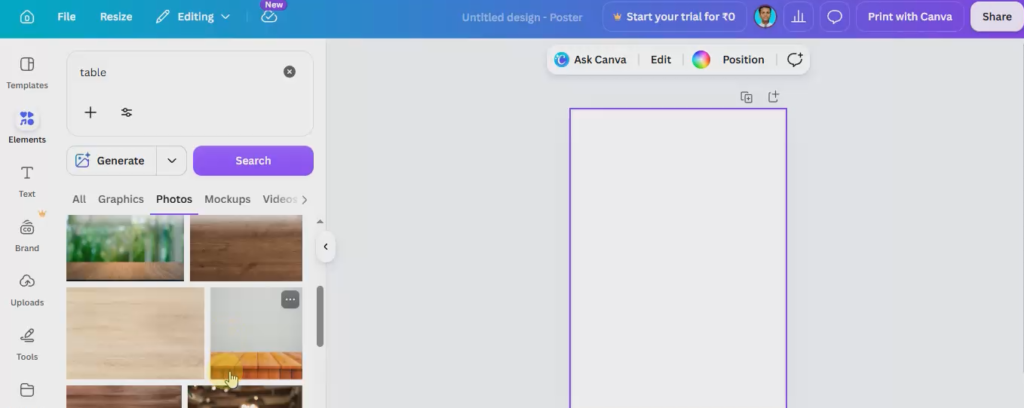
To create the poster, look for the box labeled “Create Blank” and click on it to open a blank page. Next, you need to select a background that fits your design concept. Click on the “Elements” option on the left, type “Table” in the search bar, and select the “Photos” tab; you will see various table images—choose one that looks good.
Step (3):-
Click on the ‘Elements’ option on the left side again. Type “Pizza” in the search bar; you will find many pizza PNG images. Select one, fit it onto the table background, and add a shadow using the ‘Edit’ option at the top.
Step (4):-
Click on the ‘Elements’ option on the left side again. Type “Burger” in the search bar; you will find many burger PNG images. Select one, fit it onto the table background, and add a shadow using the ‘Edit’ option at the top. Also, search for and select an arrow PNG from the elements.
Step (5):-
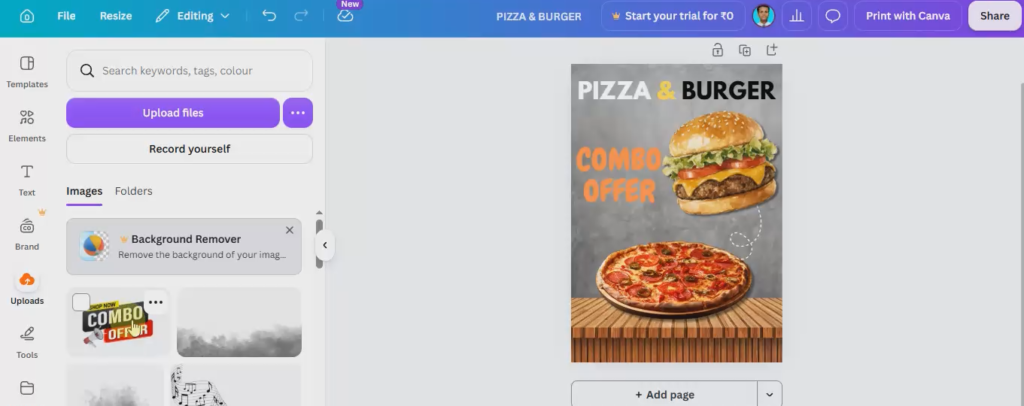
Click on ‘Elements’ again and type “Combo Offer PNG Clip” in the search bar. If you find a suitable PNG clip, use it; otherwise, download one from Google and add it to the poster. After downloading the clip, click on the ‘Uploads’ option on the left side in Canva and place it on the poster as desired.
Step (6):-
Now, click on the ‘Text’ option on the left side and type a catchy heading for your poster. Write “Pizza and Burger” in the heading and “Just Rs 199” in the box below. Adjust the size, color, and font using the options provided at the top. Finally, click on the ‘Share’ option at the top right to download the poster image.
In Hindi:-
दोस्तों, आज के ब्लॉग में हम सीखेंगे कि Canva में पोस्टर कैसे बनाया जाए। अगर आपको Canva की थोड़ी-बहुत भी जानकारी है, तो भी आप एक शानदार पोस्टर डिज़ाइन बना सकते हैं। वैसे तो पोस्टर कई तरह के ऐप्स से बनाए जा सकते हैं, लेकिन Canva से आप ऐसे डिज़ाइन बना सकते हैं जो एकदम प्रोफेशनल लगते हैं। आमतौर पर पोस्टर Photoshop या CorelDRAW जैसे सॉफ्टवेयर से बनाए जाते हैं, लेकिन आज हम Canva का इस्तेमाल करके फास्ट-फूड थीम वाला पोस्टर बनाएंगे। Canva से हाई-क्वालिटी और अच्छे ग्राफिक्स वाले पोस्टर डिज़ाइन बनाना आसान हो जाता है। तो चलिए, छह स्टेप्स में इसे करना सीखते हैं।
हम इस प्रोसेस को छह स्टेप्स में पूरा करेंगे। इस ब्लॉग को पढ़ने के बाद, वीडियो ट्यूटोरियल ज़रूर देखें; वीडियो का लिंक पेज के नीचे दिया गया है।
स्टेप (1):-
सबसे पहले Google पर जाएं, “Canva” सर्च करें और Canva डैशबोर्ड तक पहुँचने के लिए अपनी ईमेल ID से लॉग इन करें। बाईं ओर दिए गए “Templates” ऑप्शन पर क्लिक करें और सर्च बार में “Poster” टाइप करें; आपको कई तरह के पहले से बने हुए पोस्टर दिखाई देंगे। आप इनमें से किसी को भी चुनकर एक बढ़िया पोस्टर बना सकते हैं या फिर खाली पेज से शुरुआत कर सकते हैं।
स्टेप (2):-
पोस्टर बनाने के लिए, “Create Blank” वाले बॉक्स को ढूंढें और खाली पेज खोलने के लिए उस पर क्लिक करें। इसके बाद, आपको एक ऐसा बैकग्राउंड चुनना होगा जो आपके डिज़ाइन के कॉन्सेप्ट से मेल खाता हो। बाईं ओर “Elements” ऑप्शन पर क्लिक करें, सर्च बार में “Table” टाइप करें और “Photos” टैब चुनें; आपको टेबल की कई तस्वीरें दिखेंगी—उनमें से कोई एक चुनें जो अच्छी लगे। स्टेप (3):-
बाईं ओर दिए गए ‘Elements’ ऑप्शन पर फिर से क्लिक करें। सर्च बार में “Pizza” टाइप करें; आपको पिज़्ज़ा की कई PNG तस्वीरें मिलेंगी। एक तस्वीर चुनें, उसे टेबल बैकग्राउंड पर सेट करें और ऊपर दिए गए ‘Edit’ ऑप्शन का इस्तेमाल करके उसमें शैडो (परछाई) जोड़ें।
स्टेप (4):-
बाईं ओर दिए गए ‘Elements’ ऑप्शन पर फिर से क्लिक करें। सर्च बार में “Burger” टाइप करें; आपको बर्गर की कई PNG तस्वीरें मिलेंगी। एक तस्वीर चुनें, उसे टेबल बैकग्राउंड पर सेट करें और ऊपर दिए गए ‘Edit’ ऑप्शन का इस्तेमाल करके उसमें शैडो जोड़ें। साथ ही, एलिमेंट्स में से एक एरो (arrow) PNG भी सर्च करके चुनें।
स्टेप (5):-
‘Elements’ पर फिर से क्लिक करें और सर्च बार में “Combo Offer PNG Clip” टाइप करें। अगर आपको कोई सही PNG क्लिप मिल जाए, तो उसका इस्तेमाल करें; नहीं तो, Google से एक क्लिप डाउनलोड करके पोस्टर में जोड़ें। क्लिप डाउनलोड करने के बाद, Canva में बाईं ओर दिए गए ‘Uploads’ ऑप्शन पर क्लिक करें और उसे अपनी पसंद के हिसाब से पोस्टर पर लगाएं।
स्टेप (6):-
अब, बाईं ओर दिए गए ‘Text’ ऑप्शन पर क्लिक करें और अपने पोस्टर के लिए एक आकर्षक हेडिंग लिखें। हेडिंग में “Pizza and Burger” और नीचे वाले बॉक्स में “Just Rs 199” लिखें। ऊपर दिए गए ऑप्शन का इस्तेमाल करके साइज़, रंग और फ़ॉन्ट को एडजस्ट करें। आखिर में, पोस्टर इमेज डाउनलोड करने के लिए ऊपर दाईं ओर दिए गए ‘Share’ ऑप्शन पर क्लिक करें।
Video Tutorial:-https://youtu.be/d0zY_SoIUG8